STONEHEARST GROUP / STANTONDE / EN   /   ROBERTS SPACE INDUSTRIES ↗
IMAGE © CIG / RSI

Star CitizenUnofficial fan guide

Welcome to the Verse

Get Started
in Star Citizen

A ship of your own, the first launch – and suddenly a whole planet lies beneath you. Here is your way into the Verse, from account to first landing.

Let's go

Your starting bonus

50,000 UEC

In-game currency for your start – with the Stonehearst code when you create your RSI account.

  1. Click the sign-up button – the code is already filled in.
  2. Create your RSI account – that is when you get the bonus.
  3. Choose a game package and take off.
Referral code
STAR-L7QW-LPBL
Sign up at RSI with starting bonus

Referral link: If you buy a package worth 40 USD or more after signing up with our code, we receive a referral point at RSI. Your bonus does not depend on it. Forgot the code? According to RSI you can add it up to 24 hours after creating your account: Referral FAQ at RSI ↗

Starting bonus50,000 UECSTAR-L7QW-LPBLSign up with bonus

What to expect

A universe under construction.

Star Citizen is still in development. You can already fly, trade, explore and set out with other players – bugs, unfinished systems and changes are part of it. Our nav computer takes you through six stages, from your account to your place in the crew. Only one is on screen at a time: once it is done, the next one comes up. Switch it on and let's go.

Switch on the nav computer

Six stages from your account to your place in the crew.

Stage 01 / 06 · BEFORE LAUNCH

Account, game package, security

What you need before your first launch. Our flight plan “Your Path to the Cockpit” shows every step with pictures.

Route · 5 waypoints
  1. 1Create an account
  2. 2Game package
  3. 3Ship upgrade
  4. 4Install
  5. 5Secure your account

Waypoint 1 / 5 · Create an account

Create an account

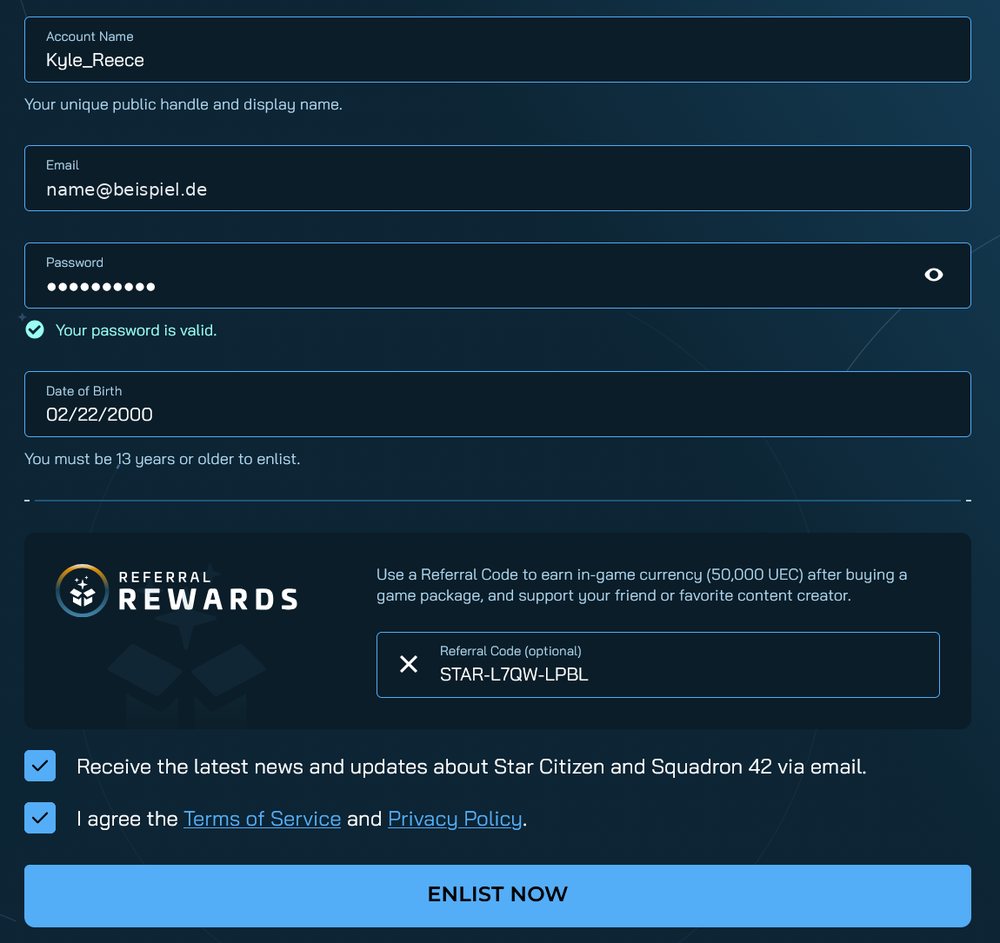
Create an RSI account. Through our sign-up button the Stonehearst code is already filled in – that gets you a 50,000 UEC starting bonus. Then open the confirmation email; your account is only active once you click the link in it.

The RSI registration, filled in with Reece as an example. Our code is already in the “Referral Code” field – nothing to type. The newsletter box is optional, the one for the terms of service is required. Clicking “Enlist Now” in the image opens the RSI registration – with our code. Image © CIG / RSI · email address blurred

Forgot the code? According to RSI you can add it in your account up to 24 hours after creating it.

Waypoint 2 / 5 · Game package

Game package

No game package, no game access. It contains the download, a first ship and insurance; there is no subscription. What the current package includes and what it costs is in the flight plan.

Want to have a look first? RSI occasionally runs Free Fly events where you can try the game for free for a few days. You will find the dates on the official RSI site ↗.

Flight plan: your game package →

Waypoint 3 / 5 · Ship upgrade

Ship upgrade

A simple starter ship is enough to learn the basics. You get a different starter ship through an upgrade (CCU) from the ship in your package – you only pay the difference. But fly the loaner ships first, then you will know what suits you.

Waypoint 5 / 5 · Secure your account

Secure your account

Your RSI account is the key to everything you buy. RSI offers free two-step authentication: email codes are on by default, an authenticator app is recommended. You set it up in the security area of your account settings; keep the backup codes somewhere safe.

  • RSI staff never ask for your password.
  • Don't give your account away or share it with others.
  • Ships and packages from third-party sellers (“grey market”) are not authorized by RSI. They may come from fraud and can be removed.
  • Only log in on robertsspaceindustries.com. Check the address before entering your credentials – even if the link comes from a chat or an email.
  • Offers that sound too good to be true usually are.

More at RSI: Account security overview ↗ and Help if your account was hacked ↗.

“On the station where I grew up, you learn early: anyone who offers you a ship for half price wants something else from you. Usually your account.”
Myra Voss · Supply, Stonehearst Medical
Comms

Incoming transmission · Dr. Kyle Reece

“On my first takeoff I took the hangar door with me. Nobody expects you to know everything on your first evening.”
Dr. Kyle Reece · Operations lead, Stonehearst Medical
More on this stage

Stage 02 / 06 · THE FIRST EVENING

Your first evening in New Babbage

New Babbage on the ice planet microTech is the home of the Stonehearst Group and a good place to start: easy to find your way around, modern, and with a space station right above it.

Route · 7 waypoints
  1. 1Wake up
  2. 2To the spaceport
  3. 3Get your ship
  4. 4Take off
  5. 5Port Tressler
  6. 6Land
  7. 7Your first money

Waypoint 1 / 7 · Wake up

Wake up

On your first start you choose a home city. If you play the tutorial, you wake up in bed in your hab in the Nest Apartments of Aspire Grand in New Babbage. If you skip it, you start right in your own hangar – then carry on at “Get your ship”; the ASOP terminal is right there.

  • YGet out of bedGet out of bedAfter logging in you are lying in bed in your hab. Get up first, then you can move.
  • FOpen door, useOpen door, useF is the all-purpose key for everything you can use: doors, buttons, elevators, terminals, seats. Holding it shows every option an object offers – handy when several buttons sit close together.

Waypoint 2 / 7 · To the spaceport

To the spaceport

From your hab, take the MT Metroloop maglev. The Grand Line connects Aspire Grand, the Commons, Tobin Expo and New Babbage Interstellar Spaceport.

Waypoint 3 / 7 · Get your ship

Get your ship

At the spaceport you retrieve your ship at an ASOP terminal. The elevator takes you to your hangar – in your home city you have one of your own.

  • FUse the terminalUse the terminalThe ASOP terminal lists your ships. “Retrieve” delivers one to your hangar, “Claim” files a destroyed one as an insurance claim.

Waypoint 4 / 7 · Take off

Take off

Sit down in the cockpit, make the ship flight ready and request takeoff clearance (or use Comms in the mobiGlas). Lift off slowly, leave the hangar first, then climb into space.

  • Right Alt+RShip flight readyShip flight readySwitches on power, thrusters and systems in one go (“Flight Ready”). After that you can request takeoff clearance.
  • Left Alt+NRequest takeoff clearanceRequest takeoff clearanceCalls flight control. On takeoff the hangar door only opens once you are cleared; on landing it assigns you a hangar or pad, and the marker guides you there.
  • F1mobiGlasmobiGlasYour character's wrist device: contracts (Contracts Manager), map, inventory, account balance and communication.

Waypoint 5 / 7 · Port Tressler

Port Tressler

The station sits in orbit right above New Babbage, with a clinic, shops and a hangar – a good first destination. How the quantum jump there works is in Stage 03 · Quantum jump.

Take time in between for the view from the cockpit – the scale is a large part of the experience.

Waypoint 6 / 7 · Land

Land

In front of the station, request landing clearance again and follow the marker to your hangar. Fly slowly; if the approach does not work out, calmly try again. Done – the way back works the same.

  • Left Alt+NRequest landing clearanceRequest landing clearanceCalls flight control. On takeoff the hangar door only opens once you are cleared; on landing it assigns you a hangar or pad, and the marker guides you there.
  • NLanding gear (hold: auto-land)Landing gear (hold: auto-land)Raise or lower the landing gear: raise it after takeoff, lower it before landing. Holding it lands automatically when you are close enough above your assigned pad.

Waypoint 7 / 7 · Your first money

Your first money

You find contracts in the mobiGlas in the Contracts Manager app. “Verified” lists checked, legal contracts nearby; unverified ones can be illegal. Delivery missions are a good start: you need no equipment, and the longer the route, the better the pay. If you would rather hunt, first get the “Tracker Training Permit” bounty licence; it unlocks very low-risk targets.

  • F1Open mobiGlasOpen mobiGlasYour character's wrist device: contracts (Contracts Manager), map, inventory, account balance and communication.
“Before you take a contract, read where it goes. A delivery on the same station pays little, one across two moons pays more – and you learn the route along the way. That's how I started at twenty.”
Nadia Serrat · Transport and planning, Stonehearst Starlines
Comms

Incoming transmission · Dr. Alice Cordell

“I grew up in New Babbage. If you get lost, look for the signs to the Metroloop – the train takes you from every district to the spaceport. My parents still live there; if you ever get stuck, we're sure to know someone who can help.”
Dr. Alice Cordell · Surgeon, Stonehearst Medical
More on this stage

Stage 03 / 06 · CONTROLS

The keys you really need

Default keyboard and mouse bindings as of Alpha 4.10 (October 2026). Bindings change now and then; you can find your current ones in the game options under Keybindings. Hover over a key to see what it is for.

Route · 5 waypoints
  1. 1On foot
  2. 2Flight ready
  3. 3Flying
  4. 4Quantum jump
  5. 5Land and get out

Waypoint 1 / 5 · On foot

On foot

  • FUse (hold: interaction mode)Use (hold: interaction mode)F is the all-purpose key for everything you can use: doors, buttons, elevators, terminals, seats. Holding it shows every option an object offers – handy when several buttons sit close together.
  • F1mobiGlas: contracts, map, accountmobiGlas: contracts, map, accountYour character's wrist device: contracts (Contracts Manager), map, inventory, account balance and communication.
  • F2Star mapStar mapThe map of the star system. This is where you pick destinations and set the route for the quantum jump.
  • IInventoryInventoryShows what you carry on your body, in your backpack and in local storage. Careful: in the pilot seat the same key toggles power to the thrusters.
  • THelmet lightHelmet lightHelmet light – useful in dark corridors, wrecks and on the night side of moons.
  • F4Switch camera viewSwitch camera viewSwitches between first-person and third-person view, for example to see the whole ship while landing.

Waypoint 2 / 5 · Flight ready

Flight ready

All at once or one by one in the seat – then request takeoff clearance.

  • Right Alt+RShip flight ready (older binding: R)Ship flight ready (older binding: R)Switches on power, thrusters and systems in one go (“Flight Ready”). After that you can request takeoff clearance.
  • UPowerPowerTurns the ship's entire power supply on or off. Without power none of the other systems work.
  • IThrustersThrustersPower to the thrusters on or off. On foot the same key opens the inventory.
  • OShieldsShieldsPower to the shields on or off. Shields absorb hits before the hull takes damage.
  • PWeaponsWeaponsPower to the weapons on or off. Switched off, more energy is left for other systems.
  • Left Alt+NTakeoff or landing clearanceTakeoff or landing clearanceCalls flight control. On takeoff the hangar door only opens once you are cleared; on landing it assigns you a hangar or pad, and the marker guides you there.

Waypoint 3 / 5 · Flying

Flying

  • NLanding gear (hold: auto-land)Landing gear (hold: auto-land)Raise or lower the landing gear: raise it after takeoff, lower it before landing. Holding it lands automatically when you are close enough above your assigned pad.
  • KVertical flight (VTOL)Vertical flight (VTOL)On ships that support it, the thrusters swivel downwards – for vertical takeoff, landing and hovering in atmosphere.
  • LHeadlightsHeadlightsThe ship's exterior lights, useful when landing in the dark and in hangars.
  • VScan modeScan modeSwitches the cockpit display to scanning: it shows objects and details around you, such as ore deposits or wrecks.
  • Mouse left/rightWeapon group 1 / 2 (SCM mode only)Weapon group 1 / 2 (SCM mode only)Fires the weapons assigned to the left or right mouse button. This only works in SCM mode; in NAV mode the weapons are off.

Waypoint 4 / 5 · Quantum jump

Quantum jump

In this order:

  • F21 · pick a destination, “Set Route”, close the map1 · pick a destination, “Set Route”, close the mapClick a destination on the star map and choose “Set Route”, then close the map. Now the quantum drive knows where to go.
  • B2 · long press: NAV mode2 · long press: NAV modeThere are two flight modes. SCM is for combat and precise manoeuvring – with weapons and shields, but limited speed. NAV is for travel: faster, weapons off. The quantum jump only works from NAV mode.
  • Mouse middle3 · quantum mode3 · quantum modeIn NAV mode, switches to quantum mode: the quantum drive spools up and the destination appears as a marker on your display.
  • Align4 · on the destination marker, the drive calibrates itself4 · on the destination marker, the drive calibrates itselfTurn the ship until the destination marker sits in the centre in front of you. The drive then calibrates by itself.
  • Mouse left5 · hold: jump5 · hold: jumpStarts the jump once you are aligned and the drive is calibrated.

Waypoint 5 / 5 · Land and get out

Land and get out

  • Left Alt+NLanding clearanceLanding clearanceCalls flight control. On takeoff the hangar door only opens once you are cleared; on landing it assigns you a hangar or pad, and the marker guides you there.
  • Nhold: auto-landhold: auto-landRaise or lower the landing gear: raise it after takeoff, lower it before landing. Holding it lands automatically when you are close enough above your assigned pad.
  • Yhold: leave seathold: leave seatGets up from the seat. Only leave it once the ship has landed and stopped.
Comms

Incoming transmission · Craig Harker

“Nineteen years in the Navy, and I'll tell you what I told every recruit: land as if someone who doesn't like you is watching. Slow, straight, gear down. You haven't landed until the ship has stopped.”
Craig Harker · Pilot, Stonehearst Medical
More on this stage

Stonehearst Group · Star Citizen cheat sheet · Alpha 4.10

On foot
FUse (hold: interaction mode)
F1mobiGlas: contracts, map, account
F2Star map
IInventory
THelmet light
F4Switch camera view
In the ship
Right Alt+RFlight ready (older binding: R)
Left Alt+NRequest takeoff or landing clearance
NLanding gear (hold: auto-land)
KVertical flight (VTOL)
LHeadlights
VScan mode
Left / right mouseWeapon group 1 / 2 (SCM mode only)
Hold YLeave seat
Quantum jump
1F2, pick a destination, "Set Route", close the map
2Long-press B: NAV mode
3Middle mouse button: quantum mode
4Aim at the destination marker; the drive calibrates on its own
5Hold left mouse button: jump

stonehearst-group.com · bindings without guarantee – check them in game under Keybindings

Stage 04 / 06 · EMERGENCIES

When things go wrong

No reason to panic – it's part of the alpha. Here is what helps in the most common cases.

Route · 4 waypoints
  1. 1You died
  2. 2Ship destroyed
  3. 3Kicked out (“30k”)
  4. 4Something is stuck

Waypoint 1 / 4 · You died

You died

You wake up again in the hospital of your home city. At a medical bed – in a clinic, on a station or in a ship with a medical bay – you can set a different place to wake up. Expect gear you were carrying not to come back with you, and take nothing valuable on your first trips.

Waypoint 2 / 4 · Ship destroyed

Ship destroyed

At the ASOP terminal you file an insurance claim (“Claim”). Since Alpha 4.8 there are two ways: the manufacturer claim is free, takes longer and returns the ship with its stock loadout. The insured claim is faster, costs aUEC and returns the loadout you saved at the terminal. Ammunition and missiles are not restocked in either case.

Waypoint 3 / 4 · Kicked out (“30k”)

Kicked out (“30k”)

Error 30000 means the server crashed or the connection dropped. Close the game, wait about ten minutes, log in again. Then get your ship back at the ASOP terminal with “Retrieve”, not “Claim”.

Waypoint 4 / 4 · Something is stuck

Something is stuck

The elevator doesn't come, a door stays shut, a contract can't be completed: that is part of the alpha. It often helps to walk away and come back, accept the contract again or log in again. Report bugs in the RSI Issue Council ↗.

Comms

Incoming transmission · Ivo Brenner

“When the server throws you out, your ship is usually still where you left it. Retrieve it first. A claim makes the old ship unusable – and I'd rather look at what's broken before we write it off.”
Ivo Brenner · Engineering and salvage, Stonehearst Repair

Stage 05 / 06 · YOUR PLACE

What suits you?

Three questions, and you know which Stonehearst division fits you.

Three questions
1. What appeals to you most?
2. What does your ideal evening in the game look like?
3. Which ship would you fly first?

Answer all three questions and your result appears here.

After the first few flights you will have a better sense of which jobs suit you. In Dr. Kyle Reece's logbook you get to know what Stonehearst does; Alice, Craig, Myra, Ivo and Nadia are on the crew page.

Comms

Incoming transmission · Dr. Kyle Reece

“You'll learn the rest along the way – and if you ever get stuck, call. The emergency channel is manned.”
Dr. Kyle Reece · Operations lead, Stonehearst Medical
More on this stage

Stage 06 / 06 · DATABASE

Glossary and questions

To look up when a term or a question comes up.

Route · 3 waypoints
  1. 1Glossary
  2. 2Frequent questions
  3. 3Help and community

Waypoint 1 / 3 · Glossary

Glossary

UEC / aUEC
UEC (United Earth Credits) is the currency of the Verse. In the game you pay with aUEC (alpha UEC) during the alpha; it can be lost when the game is reset.
Pledge / starter package
A purchase in the RSI store. A starter package includes game access, a first ship and insurance.
CCU
Cross-Chassis Upgrade: upgrades a ship you bought to a different, more expensive one. Downgrades are not possible.
Melt / Buyback
Melt exchanges a purchase for store credit at its purchase price. Buyback lets you buy it back later, with restrictions.
LTI
Lifetime Insurance, ship insurance without an expiry date. How much it matters in the game depends on the insurance rules, which change during the alpha.
Hangar
Two things: your account hangar on the RSI website shows what you own. In the game you have your own hangar for your ship in your home city – you start there if you skip the tutorial, and later whenever you logged out in your home city.
Hab
Your living quarters. You wake up here if you play the tutorial or logged out away from your home city.
ASOP
Terminal where you retrieve ships or file an insurance claim.
mobiGlas
Your character's wrist device (F1): contracts, map, inventory.
SCM / NAV
The two flight modes: SCM for manoeuvring and combat, NAV for travel and quantum jumps. Switch with a long press on B.
Quantum (QT)
Quantum jump – the travel drive for long distances.
PU
Persistent Universe – the open, shared game world.
Patch / PTU
A patch is a new game version; it is tried out first on the PTU, the public test server.
Wipe
A reset of aUEC and game progress. According to CIG (February 2026) no full wipes are planned, only targeted ones.
30k
Disconnect from the server, see When things go wrong.
CrimeStat
Wanted level after crimes in the game. With one you get no landing permission and can become a bounty target yourself.
Free Fly
Event during which the game can be tried for free for a few days, often around trade shows such as the IAE in November.
Spectrum
RSI's official forum and chat.
Org
Player organization – like our three divisions.

Waypoint 2 / 3 · Frequent questions

Frequent questions

Do I need a big ship right away?

No. For the first flights a starter package with game access is enough. Get to know your ship and try different jobs; later you can upgrade a ship to a larger one. By then you will have a much better idea of what equipment you want.

What does Star Citizen cost – is there a subscription?

You do not need a subscription. You buy a starter package once, with game access and a first ship; current prices are in the RSI store and change during sales. If you want a taste first, wait for a Free Fly event: then you can test the game for a few days without buying.

How do I redeem the referral code?

Enter the code when you create your RSI account – the "Sign up at Roberts Space Industries (RSI) with starting bonus" button already has it filled in. If you forgot the code, RSI lets you add it in your account up to 24 hours after creating it.

What does the referral code do – for me and for you?

You receive 50,000 UEC of in-game currency on your new account, which you can spend on gear in the game. We receive one recruitment point once you have bought a starter package; that earns in-game rewards. No money changes hands on either side.

Where do I find system requirements and installation help?

The RSI "First Steps" section has the official system requirements and the launcher guide. An SSD is required. If something gets stuck during setup, RSI Support can help.

Where can I ask other players something?

On the Spectrum forum you can talk to the community. For the first steps and flights there is also the official getting-started guide. And you can fly with us: our three divisions are under Join Us.

Data window · System check

Will my PC run it?

Pick your components. The nav computer checks them against RSI’s requirements and against measurements by PC Games Hardware, and shows you where the bottleneck is. Windows tells you what is inside your PC: press Windows + R and enter “dxdiag”.

Input · Components

Diagnostic log

  • Ready. Pick your components and run diagnostics.
RSI requirements at a glance

Figures from the RSI help centre, checked November 1, 2026. macOS and Linux are not supported.

MinimumRecommendedOptimal
Operating systemWindows 10, 64-bit, up to dateWindows 10 or 11Windows 11
ProcessorQuad-core with AVX, AVX2 and FMA3 (Intel i7 Haswell or newer, AMD Excavator or newer)Quad- or eight-core (Intel i7 Haswell or newer, AMD Ryzen 5 and newer)current processor with 3D V-Cache or many fast cores, e.g. Ryzen 7 9800X3D, Core i9-13900K
Memory16 GB32 GB DDR432 GB; 64 GB if a lot runs alongside (stream, browser, Discord)
Graphics cardDirectX 11.1 and Vulkan 1.2, 4 GB VRAM (e.g. GTX 1060, RX 460, Arc A380)DirectX 12, 8 GB VRAM12–16 GB VRAM, current mid-range to high-end (e.g. RTX 5070, RX 9070)
Storage150 GB free on an SSD + 10 GB of SSD for the page fileas on the left; from experience: a fast SSDNVMe SSD with 200 GB and room for updates

it runs   it's fun   runs really smoothly. “Optimal” is not an RSI figure but our experience from the crew and the community – Star Citizen benefits most from a fast processor and enough memory. The package page in the RSI store partly still lists older, lower figures – the current help article in the RSI “First Steps” section ↗ is what counts.

Based on: RSI minimum requirements ↗ (checked November 1, 2026), the PC Games Hardware CPU test ↗ with 30 processors (Alpha 4.7.2, May 2026) and community recommendations. Processors without a measurement of their own are estimated from the closest measured model; if the estimate lands just above a tier boundary, we use the lower tier. The “Optimal” tier is not an RSI figure but our own experience. No guarantee – frame rates also depend on server, location and player count.

Transmission · Ivo Brenner

“Give me your numbers and I’ll tell you where it’s stuck.”

Data window · Shipyard

Starter ships via upgrade

How does an upgrade work?
  1. Buy: open the “Ship Upgrades” tool in the RSI Pledge Store, pick the Aurora Mk II on the left and your target ship on the right.
  2. Apply: under “My Hangar”, choose “Apply Upgrade” on the upgrade and select the First Flight Pack.
  3. Fly: in the game the new ship is now waiting at the terminal. Your game access stays.

An applied upgrade is permanent and only goes to a more expensive ship. So fly the loaner ships from the package first, then decide. Source: RSI help centre ↗

RSI Aurora Mk II in flight – official image from RSI

Your starter ship · in the First Flight Pack

Aurora Mk II

Every upgrade starts here: you swap the Aurora for another ship and only pay the difference. In the RSI store under “Ships → Upgrades”, pick the Aurora Mk II on the left (“From”) – if you are not logged in, click “All ships” first – and your target ship on the right (“To”).

RSI Ship Upgrade tool: Aurora Mk II on the left, 100i on the right, the upgrade price at the bottom
What it looks like at RSI · example 100iThe Aurora Mk II on the left (“From”), the target ship on the right (“To”), the price at the bottom – here as shown in the German store: €5.24 including 19 % VAT, which is $5 before tax. The note “You don’t own a Aurora Mk II” disappears once you own the package. Image © CIG / RSI
100i – official image from RSI

Origin Jumpworks · Crew 1

100i

Starter / Pathfinder

Upgrade from Aurora Mk II+$5

A comfortable single-seater for travel and small jobs – for anyone who likes to be on the move and enjoys some comfort while doing it.

With us: travel and exploration

Golem – official image from RSI

Drake Interplanetary · Crew 1

Golem

Starter / light mining

Upgrade from Aurora Mk II+$15

Mining for beginners. Comes as a 30-day loaner in the package – try it first, then decide.

With us: mining

Salvation – official image from RSI

Roberts Space Industries · Crew 1

Salvation

Starter / light salvage

Upgrade from Aurora Mk II+$15

Salvaging wrecks on a small scale: strip hull material, process it, sell it.

With us: Repair

Avenger Titan – official image from RSI

Aegis Dynamics · Crew 1

Avenger Titan

Light cargo

Upgrade from Aurora Mk II+$15

A fast single-seater with a small cargo hold – an all-rounder for delivery contracts and your first fight.

With us: Starlines

Intrepid – official image from RSI

Crusader Industries · Crew 1

Intrepid

Starter / light cargo

Upgrade from Aurora Mk II+$20

A cargo ship for beginners. Also a 30-day loaner in the package.

With us: Starlines

Reliant Kore – official image from RSI

MISC · Crew 2

Reliant Kore

Starter / light cargo

Upgrade from Aurora Mk II+$20

For two: small cargo, shared flights, a seat for a second pair of hands at the console.

With us: Starlines

C8R Pisces – official image from RSI

Anvil Aerospace · Crew 1

C8R Pisces

Medical

Upgrade from Aurora Mk II+$20

A small rescue ship with medical equipment – if you want to join our rescue flights, this is where to start.

With us: Medical

Syulen – official image from RSI

Gatac Manufacture · Crew 1

Syulen

Starter / Pathfinder

Upgrade from Aurora Mk II+$25

Xi’an design for exploration and small cargo – unusual, calm, a ship for explorers.

With us: travel and exploration

Nomad – official image from RSI

Consolidated Outland · Crew 1

Nomad

Starter / light cargo

Upgrade from Aurora Mk II+$35

Cargo with a small living area – for anyone who stays out longer.

With us: Starlines

Cutlass Black – official image from RSI

Drake Interplanetary · Crew 3

Cutlass Black

Light cargo / medium fighter

Upgrade from Aurora Mk II+$65

The classic for small crews: cargo, combat, out via the ramp. A big step – but one many never regret.

With us: all three divisions

C1 Spirit – official image from RSI

Crusader Industries · Crew 2

C1 Spirit

Light cargo

Upgrade from Aurora Mk II+$80

More cargo, more comfort, for two – when getting started turns into a profession.

With us: Starlines

Upgrade prices in US dollars before sales tax or VAT, as shown in the RSI upgrade tool on October 30, 2026. Prices change during promotions – the price at RSI is always what counts. The Mustang Alpha and Drake Cutter cost as much as the Aurora Mk II or less, so there is no upgrade to them.

Transmission · Nadia Serrat

“Fly the loaner ships before you upgrade. Thirty days are enough to find out whether cargo, mining or salvage suits you.”

Stonehearst Group

Join via RSI

Our three divisions are organizations on RSI. You can apply or get in touch there.

MedicalRepairStarlines

Database query

Search stonehearst-group.com

↑ ↓ select · Enter open · Esc close · Ctrl + K opens search